There are many ways to optimize images for better web performance. Today, we'll explore how to do that using modern image formats.
Types and Characteristics of Image Formats
1) PNG
- File format: Portable Network Graphics
- MIME type:
image/png - File extension:
.png
PNG is preferred over JPEG when an exact reproduction of the original image is needed or transparency is required. Since PNG uses lossless compression, it retains all original data during compression. Because no important information is lost, it's well-suited for displaying detailed graphics and charts on websites.
Can I use PNG?


As you'd expect from a traditional image format, PNG is supported by virtually all browsers. Interestingly, it's not supported in Internet Explorer 6 and below — though thankfully, global usage of IE6 and earlier is at 0%.
2) JPEG (JPG)
- File format: Joint Photographic Expert Group image
- MIME type:
image/jpeg - File extension:
.jpg,.jpeg,.jfif,.pjpeg,.pjp
JPEG stands for Joint Photographic Experts Group, the international committee that standardized the file format in the late 1980s and early 1990s.
JPEG files support up to 24-bit color and store images using lossy compression for easy storage and transfer. While this works fine for everyday use, the downside is that it can degrade the quality of the original image.
It's ideal for still images that need lossy compression (and is currently the most popular format). For cases that require precise reproduction, use PNG; for better reproduction with higher compression, consider WebP or AVIF.
What's the difference between JPEG and JPG?
They are essentially the same image file format. Both are based on the image compression standard developed by the Joint Photographic Experts Group and compress and store images in the same way. The difference lies only in the file extension length.
- JPG: Early versions of Windows limited file extensions to three characters, so the "E" was dropped from "JPEG" to produce "JPG."
- JPEG: Mac and Unix systems had no such three-character restriction, so "JPEG" was used as-is.
Can I use JPEG?
Like PNG, JPEG is one of the most universally compatible image file formats, supported by the vast majority of browsers, software, and apps. (No dedicated entry was found on Can I Use.)
3) WebP
- File format: Web Picture format
- MIME type:
image/webp - File extension:
.webp
WebP is an excellent choice for both static and animated images. Based on the VP8 video format, it supports lossy and lossless compression, animation, and alpha transparency. WebP generally offers better compression than JPEG, PNG, and GIF and was designed to replace them. AVIF and JPEG XL are formats designed to replace WebP in turn. AVIF provides slightly better compression, but has more limited browser support and doesn't support progressive rendering.
Can I use WebP?

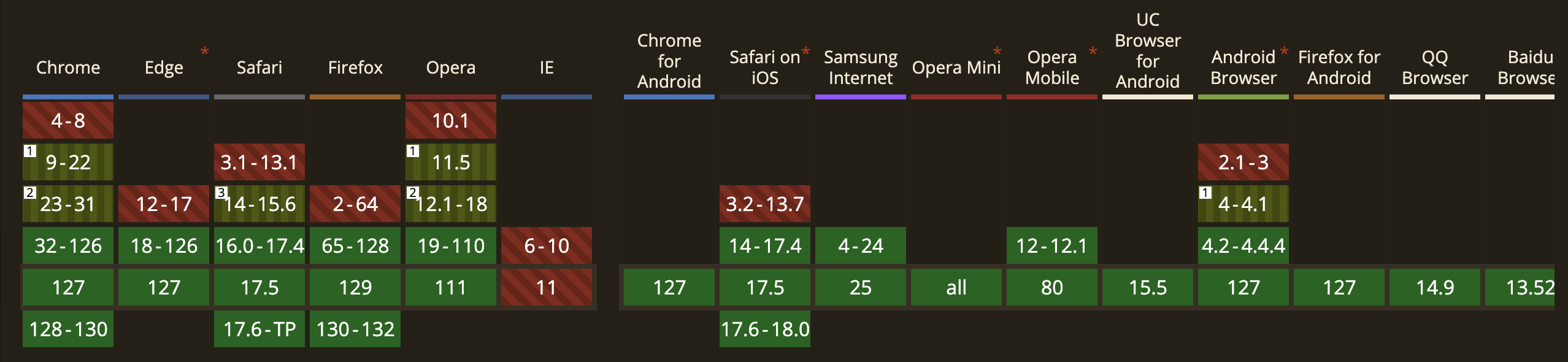
According to Can I Use, 98.52% of browser environments worldwide support WebP.
4) AVIF
- File format: AV1 Image File Format
- MIME type:
image/avif - File extension:
.avif
AVIF is a modern image format based on the AV1 video format. It generally provides better compression than WebP, JPEG, PNG, and GIF and was designed to replace them. It supports high color depth, animated frames, and transparency.
Can I use AVIF?

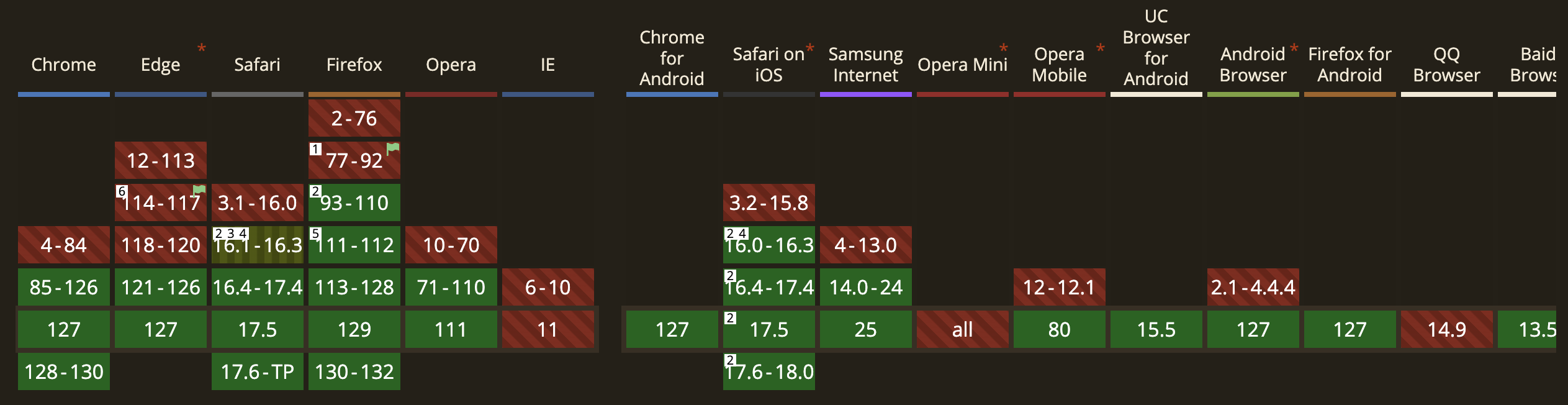
Since January 2024, this feature works across the latest devices and major browser versions.
As of January 2024, AVIF works on the latest devices and major browser versions — making it a fairly fresh format that has only recently begun to see broad support across standard web environments.
Serving the Right Image Format with <picture>
This is a responsive image technique that lets the user agent decide which image resource to serve based on resolution, media queries, and support for specific image formats.
The <picture> HTML element contains <source> elements and an <img> element to provide alternative versions of an image for different display or device scenarios. The browser evaluates each <source> element to select the best image; if none are supported, it falls back to the URL specified in the <img> element's src attribute.
Can I Use <picture>?


Looking at browser compatibility for the <picture> tag on Can I Use, you can see that it's not supported in some browsers. You might wonder: what's the point of using <picture> for image compatibility if it doesn't cover every browser? That's exactly where the <img> tag plays a crucial role. Since <img> is also used in browsers that don't support <picture>, you don't need to worry about compatibility.
Purpose of <img>
- To specify the image's size and other attributes
- To serve as a fallback when none of the images provided via
<source>are available
The media Attribute
The media attribute specifies a media condition. If the media condition on a <source> element evaluates to false, the browser skips it and evaluates the next element inside <picture>.
<picture>
  <source srcset="mdn-logo-wide.png" media="(min-width: 600px)" />
  <img src="mdn-logo-narrow.png" alt="MDN" />
</picture>
The srcset Attribute
Provides a list of images to choose from based on size or display pixel density. You can specify separate images for standard and high-density displays.
<picture>
  <source srcset="logo.png, logo-1.5x.png 1.5x" />
  <img src="logo.png" alt="MDN Web Docs logo" height="320" width="320" />
</picture>
The type Attribute
Specifies the MIME type for the resource URL in the <source> element's srcset attribute. If the user agent doesn't support the specified type, the <source> element is skipped.
<picture>
  <source srcset="photo.avif" type="image/avif" />
  <source srcset="photo.webp" type="image/webp" />
  <img src="photo.jpg" alt="photo" />
</picture>
Wrapping Up
This was actually my first time digging deeply into the Can I Use website. I learned how to optimize web performance using modern image formats while keeping browser compatibility in mind. It was a good reminder that, as a web developer, considering diverse browser environments and delivering the best possible experience to all users really matters. Going forward, I'll make sure to apply what I studied today whenever I work with images!
References